A call that goes to voicemail while the colleague is online, a screen share that lags during a client meeting, a kitchen chair that causes lower back pain after three weeks: these situations reveal that remote work is not just about placing a laptop on a table. The hardware and network setup directly affect the ability to stay reachable and work smoothly.
Network and data security in remote work: the angle that guides overlook
Most advice on working from home stops at desk ergonomics or time management. However, the cybersecurity aspect remains crucial, especially when handling professional files on a home connection.
The recommendations shared by Cybermalveillance.gouv.fr emphasize several concrete points: use a VPN with multi-factor authentication, apply system updates as soon as they are available, perform regular backups, and monitor unusual connections. Ideally, the hardware should be provided and managed by the employer, separate from the family computer.
The internet box is often underestimated as a weak link. Changing the default administrator password, enabling WPA3 encryption if the box allows it, and disabling WPS are simple reflexes. If multiple people share the connection, creating a guest Wi-Fi network for personal use isolates professional traffic.
You can also configure your remote work with Bio Geek to delve deeper into choosing the right network and telephony equipment for daily home use.

Internet connection and telephony: staying reachable without interruptions
A smooth video conference requires a stable bandwidth, not necessarily the fastest. The consistency of the signal matters more than the maximum advertised speed. An Ethernet cable between the workstation and the box resolves most latency issues that Wi-Fi amplifies, especially in a home with thick walls.
When the office is too far from the box, a powerline adapter (CPL) or a mesh repeater system offers a decent compromise. Feedback on this point varies depending on the age of the electrical network, but a recent CPL generally outperforms Wi-Fi through two walls.
Mobile phone as a safety net
In case of a box failure, sharing a connection from a mobile allows you to finish a call or send an urgent deliverable. Checking that your plan allows for sufficient data volume avoids unpleasant surprises at the end of the month.
- Connect the computer via Ethernet for video meetings and large file transfers.
- Set up mobile connection sharing in advance to switch in less than a minute.
- Test the audio quality of the headset with a colleague before the first important meeting, not during.
Ergonomic workstation: prioritizing screen, chair, and accessories
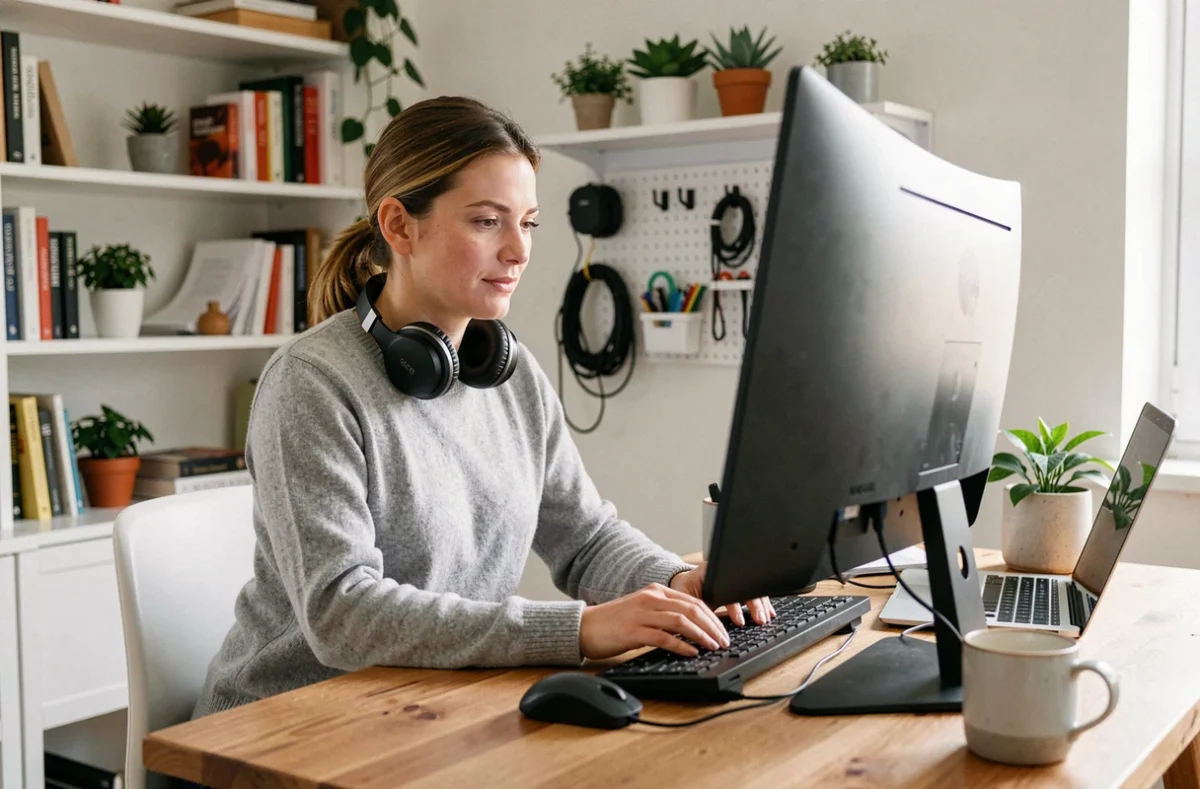
An external screen of at least 24 inches reduces eye strain compared to a laptop screen. Positioning it at eye level, with arms extended, is the basic adjustment. A monitor stand or a simple stack of books suffices if the budget is tight.
The chair is the most cost-effective expense over time. A chair with adjustable lumbar support, adjustable armrests, and a reclining seat protects the back during seven to eight-hour days. Many employees invest in a high-end screen but keep an unsuitable chair, which reverses the priorities.
Mouse, keyboard, and small accessories that change the day
An ergonomic vertical mouse relieves wrist strain. An external keyboard allows for separating hand positioning from that of the screen, which improves posture. These accessories represent a modest budget compared to the comfort gain.
Also consider the lighting: an adjustable desk lamp avoids reflections on the screen and limits eye fatigue at the end of the day. Natural light is preferable, as long as you are not facing the window.
Availability hours and right to disconnect: the framework to establish
Being reachable does not mean being available at all times. Recent public recommendations advocate for collectively setting the hours when a response is expected, clearly distinguishing between emergencies and regular requests, and disabling notifications outside of work hours.
Some organizations go further by monitoring messages sent outside of hours to ensure that the right to disconnect is genuinely applied. This monitoring helps identify deviations before they become the norm.
Work accident at home: an unknown presumption
An accident occurring at the place and during remote work hours benefits from a presumption of a work accident. The employer remains responsible for health and safety even when the activity is performed at home. The unique document for assessing professional risks (DUERP) must include risks related to isolation, posture, and workload in remote work.
This legal point alone justifies the attention paid to equipment and workstation layout. A properly equipped workspace protects the employee and limits the employer’s liability.
Well-configured remote work relies on three concrete pillars: a reliable connection with a mobile backup plan, an ergonomic workstation focused on the chair and screen, and written availability rules. Adjusting these three elements takes a few hours but changes the quality of each day worked from home.